Introduction
The Federal Board of Revenue (FBR) Pakistan has mandated digital invoicing for registered taxpayers to improve tax compliance, reduce fraud, and automate the sales tax collection process. This comprehensive guide will walk you through the entire process of integrating your business software or ERP system with FBR's Digital Invoicing System.
Whether you're a software developer building an invoicing solution, a business owner looking to understand the process, or an IT professional tasked with implementing FBR integration, this tutorial covers everything you need to know.
- How to access and navigate the FBR IRIS Portal
- Understanding integration modes and licensed integrators
- Setting up API credentials and IP whitelisting
- Completing sandbox testing scenarios
- Moving to production environment
- Invoice submission API structure and responses
- Common errors and troubleshooting
Table of Contents
- 1. Prerequisites
- 2. Accessing FBR IRIS Portal
- 3. Digital Invoicing Module
- 4. Choosing Integration Mode
- 5. Selecting Licensed Integrator (PRAL)
- 6. API Integration Setup
- 7. IP Whitelisting
- 8. Sandbox Environment & Testing Scenarios
- 9. Understanding Test Scenarios
- 10. Invoice API Structure
- 11. Moving to Production
- 12. Best Practices & Tips
- 13. Common Errors & Troubleshooting
- 14. Frequently Asked Questions
1. Prerequisites
Before you begin the FBR Digital Invoicing integration process, ensure you have the following:
Business Requirements
- Active NTN (National Tax Number): Your business must be registered with FBR
- Sales Tax Registration: Active STRN (Sales Tax Registration Number) is required
- IRIS Portal Access: Valid login credentials for FBR's IRIS portal
- Business Bank Account: Registered with FBR for tax payments
Technical Requirements
- Static IP Address: Your server must have a static IP for whitelisting
- HTTPS Support: SSL certificate for secure communication
- JSON Capability: Your system must handle JSON request/response
- Development Environment: For testing API integration
2. Accessing FBR IRIS Portal
The IRIS (Inland Revenue Information System) portal is FBR's primary online platform for all tax-related services. Here's how to access it:
1Navigate to IRIS Portal
Go to https://iris.fbr.gov.pk in your web browser.
2Login with Credentials
Enter your registered CNIC/NTN and password. If you haven't registered, click on "e-Registration" to create an account.
3Navigate Dashboard
After login, you'll see the IRIS dashboard with various modules including Invoice Management, Registration, Declaration, and more.
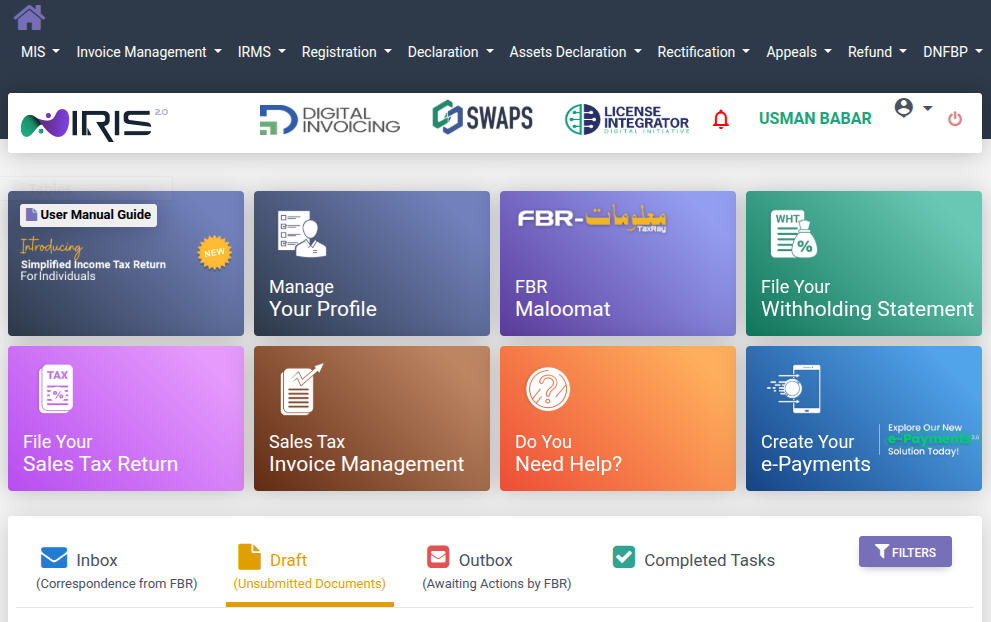
Figure 1: FBR IRIS Portal Dashboard - Click on "Digital Invoicing" to begin integration
The IRIS dashboard provides access to multiple services. For digital invoicing integration, look for the "Digital Invoicing" option in the top navigation bar. You'll also see other useful sections like:
- Sales Tax Invoice Management: For managing your sales tax invoices
- FBR Maloomat: Tax information and records
- File Your Sales Tax Return: Monthly/quarterly return filing
- Withholding Statement: For withholding tax documentation
3. Digital Invoicing Module
Click on the "Digital Invoicing" button in the IRIS header to access the Digital Invoicing module. This module is specifically designed for businesses that want to integrate their software systems with FBR for automated invoice submission.
What is FBR Digital Invoicing?
FBR Digital Invoicing is a system that allows businesses to:
- Submit invoices electronically in real-time
- Receive instant FBR invoice numbers (IRNM)
- Generate QR codes for invoice verification
- Automate sales tax calculations and reporting
- Maintain compliance with FBR regulations
4. Choosing Integration Mode
FBR offers multiple integration modes based on your business size and technical capabilities:
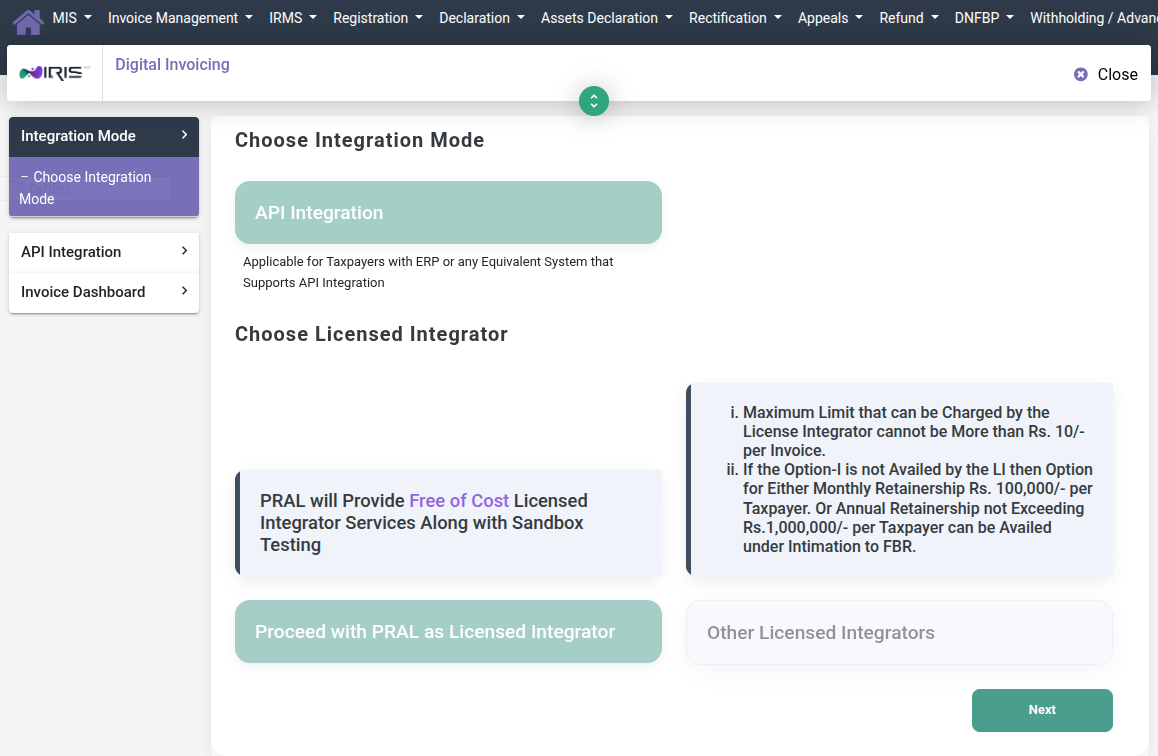
Figure 2: Choose Integration Mode - Select API Integration for software integration
Available Integration Modes
| Mode | Description | Best For |
|---|---|---|
| API Integration | Direct API connection for automated invoice submission | Businesses with ERP/invoicing software |
| POS Integration | Point of Sale system integration for retail | Retail stores, restaurants, shops |
| Manual Entry | Manual invoice entry through IRIS portal | Small businesses with low invoice volume |
For this tutorial, we'll focus on API Integration as it provides the most flexibility and automation for businesses with custom software solutions.
1Select API Integration
Click on the "API Integration" option. This is applicable for taxpayers with ERP or any equivalent system that supports API integration.
5. Selecting Licensed Integrator (PRAL)
FBR requires all API integrations to go through a Licensed Integrator (LI). The Licensed Integrator acts as an intermediary between your software and FBR's systems, ensuring security and compliance.
Why Licensed Integrators?
- Enhanced security and data validation
- Standardized API interface
- Technical support and troubleshooting
- Compliance monitoring
Available Options
Option 1: PRAL (Pakistan Revenue Automation Limited) - Recommended
PRAL will provide FREE of Cost Licensed Integrator Services along with Sandbox Testing.
This is the most cost-effective option for most businesses, especially startups and SMEs.
Option 2: Other Licensed Integrators
You can also choose from other FBR-approved licensed integrators. However, note the following pricing guidelines:
- Maximum charge: Rs. 10/- per invoice
- Monthly retainership option: Rs. 100,000/- per taxpayer
- Annual retainership: Not exceeding Rs. 1,000,000/- per taxpayer
1Click "Proceed with PRAL as Licensed Integrator"
For most businesses, PRAL is the recommended choice due to free sandbox testing and no per-invoice charges.
2Click "Next" to proceed
After selecting PRAL, click the Next button to move to API Integration setup.
6. API Integration Setup
After selecting your Licensed Integrator, you'll need to configure your API integration settings. This involves providing technical details about your system.
Technical Details Required
| Field | Description | Example |
|---|---|---|
| System Name | Name of your ERP/invoicing software | SmartInvoice ERP |
| System Version | Current version of your software | 2.5.1 |
| Contact Person | Technical contact for integration | IT Manager name |
| Contact Email | Email for technical communications | tech@yourcompany.com |
| Contact Phone | Phone number for urgent issues | +92-XXX-XXXXXXX |
API Credentials
After submitting your technical details, FBR will generate:
- Client ID: Unique identifier for your integration
- Client Secret: Secret key for authentication (keep this secure!)
- Sandbox API Endpoint: URL for testing environment
7. IP Whitelisting
FBR requires IP whitelisting as a security measure. Only requests from your registered IP addresses will be accepted by the FBR API.
Steps for IP Whitelisting
1Identify Your Server IP
Determine the static IP address(es) of your production server(s). You can find this from your hosting provider or by running curl ifconfig.me on your server.
2Navigate to IP Whitelisting Section
In the Digital Invoicing module, go to "API Integration" → "IP Whitelisting"
3Add Your IP Addresses
Enter each IP address that will make API calls to FBR. You can add multiple IPs if you have redundant servers.
4Wait for Approval
IP whitelisting may take 24-48 hours to become active. Plan your testing timeline accordingly.
8. Sandbox Environment & Testing Scenarios
Before you can submit invoices to FBR's production system, you must successfully complete all required testing scenarios in the Sandbox environment. This ensures your integration is working correctly and handles all invoice types properly.
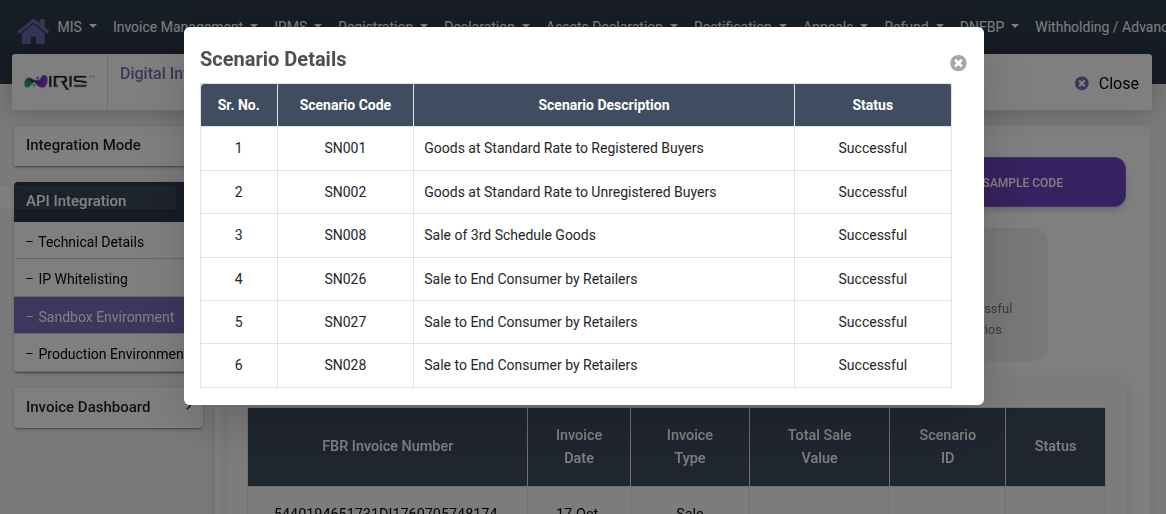
Figure 3: Sandbox Environment showing 6 test scenarios - All must show "Successful" status
What is the Sandbox Environment?
The Sandbox is a testing environment that mirrors the production system but doesn't affect real tax records. It allows you to:
- Test your API integration without real consequences
- Validate invoice formats and data structures
- Handle different invoice scenarios
- Debug and fix issues before going live
Accessing Sandbox
1Navigate to Sandbox Environment
In the API Integration section, click on "Sandbox Environment" in the left sidebar.
2Get Sandbox Credentials
Use the sandbox-specific Client ID and Secret provided. These are different from production credentials.
3Use Sandbox API Endpoint
Sandbox URL: https://sandbox.fbr.gov.pk/api/v1/ (example - verify current endpoint from portal)
9. Understanding Test Scenarios
FBR requires you to successfully complete specific test scenarios before production access is granted. Each scenario tests a different type of invoice transaction.
Standard Test Scenarios
| Sr. | Scenario Code | Description | Purpose |
|---|---|---|---|
| 1 | SN001 | Goods at Standard Rate to Registered Buyers | B2B sales with standard 18% GST to registered businesses |
| 2 | SN002 | Goods at Standard Rate to Unregistered Buyers | B2C sales to consumers without STRN |
| 3 | SN008 | Sale of 3rd Schedule Goods | Items under 3rd Schedule with special tax treatment |
| 4 | SN026 | Sale to End Consumer by Retailers | Retail POS transactions |
| 5 | SN027 | Sale to End Consumer by Retailers | Additional retail scenario with variations |
| 6 | SN028 | Sale to End Consumer by Retailers | Retail with different payment modes |
Scenario Details Explained
SN001: Goods at Standard Rate to Registered Buyers
This scenario tests B2B transactions where:
- Buyer has valid STRN (Sales Tax Registration Number)
- Standard GST rate of 18% applies
- Input tax credit is claimable by buyer
- Full buyer details required (NTN, STRN, address)
SN002: Goods at Standard Rate to Unregistered Buyers
This scenario tests B2C transactions where:
- Buyer is not registered for sales tax
- CNIC may be required for transactions above threshold
- Standard GST rate applies
- No input tax credit for buyer
SN008: Sale of 3rd Schedule Goods
Third Schedule goods have special tax treatment under Sales Tax Act 1990:
- Different tax rates may apply
- Specific goods listed in 3rd Schedule of Sales Tax Act
- May include items like petroleum, gas, etc.
- Special reporting requirements
SN026-SN028: Retail Consumer Sales
These scenarios test Point of Sale transactions:
- Quick invoice generation for retail
- Cash, card, and other payment modes
- Real-time FBR submission
- QR code generation for verification
Completing Test Scenarios
1Review Sample Code
Click "Sample Code" button to see the expected JSON structure for each scenario.
2Prepare Test Data
Create test invoices matching each scenario's requirements.
3Submit via API
Use your sandbox credentials to submit test invoices.
4Verify Status
Check the Scenario Details popup to confirm "Successful" status for each scenario.
10. Invoice API Structure
Understanding the API structure is crucial for successful integration. Here's a detailed breakdown of the invoice submission API.
Authentication
FBR API uses OAuth 2.0 for authentication. First, obtain an access token:
POST /auth/token
Content-Type: application/x-www-form-urlencoded

grant_type=client_credentials
&client_id=YOUR_CLIENT_ID
&client_secret=YOUR_CLIENT_SECRET
Response:
{
    "access_token": "eyJhbGciOiJIUzI1NiIsInR5cCI6IkpXVCJ9...",
    "token_type": "Bearer",
    "expires_in": 3600
}
Invoice Submission Request
Submit invoices using the following structure:
POST /api/v1/invoices
Authorization: Bearer YOUR_ACCESS_TOKEN
Content-Type: application/json

{
    "InvoiceNumber": "INV-2025-001234",
    "InvoiceType": 1,
    "InvoiceDate": "2025-12-09",
    "InvoiceTime": "14:30:00",
    "BuyerNTN": "1234567-8",
    "BuyerSTRN": "12-34-5678-901-23",
    "BuyerName": "ABC Company Pvt Ltd",
    "BuyerAddress": "123 Business Street, Karachi",
    "BuyerPhone": "021-1234567",
    "TotalSaleValue": 100000.00,
    "TotalTaxCharged": 18000.00,
    "TotalBillAmount": 118000.00,
    "PaymentMode": 1,
    "Items": [
        {
            "ItemCode": "PROD-001",
            "ItemName": "Product Description",
            "Quantity": 10,
            "UnitPrice": 10000.00,
            "TotalAmount": 100000.00,
            "TaxRate": 18.00,
            "TaxAmount": 18000.00,
            "PCTCode": "85.17"
        }
    ]
}
Invoice Types
| Code | Type | Description |
|---|---|---|
| 1 | Sales Invoice | Standard sales invoice |
| 2 | Debit Note | For additional charges |
| 3 | Credit Note | For returns/refunds |
Payment Modes
| Code | Mode |
|---|---|
| 1 | Cash |
| 2 | Card |
| 3 | Credit |
| 4 | Bank Transfer |
Successful Response
{
    "Status": "Success",
    "FBRInvoiceNumber": "IRNM5440194651731D117607057481749",
    "QRCode": "base64_encoded_qr_code_image",
    "VerificationURL": "https://verify.fbr.gov.pk/verify?inv=IRNM5440...",
    "Message": "Invoice submitted successfully"
}
Error Response
{
    "Status": "Error",
    "ErrorCode": "E1001",
    "ErrorMessage": "Invalid buyer STRN format",
    "Details": "STRN must be in format XX-XX-XXXX-XXX-XX"
}
11. Moving to Production
After successfully completing all sandbox test scenarios, you can request production access.
Production Checklist
- ☑ All test scenarios showing "Successful" status
- ☑ IP addresses whitelisted for production
- ☑ Production credentials received
- ☑ Error handling implemented
- ☑ Retry mechanism in place
- ☑ Invoice storage/backup system ready
- ☑ QR code printing capability (if required)
Requesting Production Access
1Verify Sandbox Completion
Ensure all scenarios show "Successful" in Sandbox Environment section.
2Navigate to Production Environment
Click on "Production Environment" in the API Integration sidebar.
3Request Production Token
Click the button to request production credentials. This may require approval.
4Update Your System
Replace sandbox credentials and endpoints with production values in your software.
Production API Endpoint
Production URL: https://api.fbr.gov.pk/api/v1/ (verify from portal)
12. Best Practices & Tips
Development Best Practices
- Implement Retry Logic: Network issues can cause temporary failures. Implement exponential backoff retry mechanism.
- Store FBR Response: Always save the FBR Invoice Number and QR code returned for each invoice.
- Validate Before Submission: Check all required fields and formats before API call to reduce errors.
- Log Everything: Maintain detailed logs of all API requests and responses for troubleshooting.
- Handle Timeouts: Set appropriate timeout values (30-60 seconds) for API calls.
Business Best Practices
- Train Staff: Ensure all invoice-creating staff understand FBR requirements.
- Regular Reconciliation: Match your invoices with FBR's Invoice Dashboard regularly.
- Backup System: Have a manual entry backup plan if API fails.
- Monitor Dashboard: Check FBR's Invoice Dashboard for any rejected or pending invoices.
Security Best Practices
- Secure Credentials: Store Client ID and Secret in environment variables or secure vault.
- Use HTTPS: All API communication must be over HTTPS.
- IP Restriction: Only make API calls from whitelisted IPs.
- Token Management: Refresh access tokens before expiry; don't hardcode tokens.
13. Common Errors & Troubleshooting
Authentication Errors
| Error | Cause | Solution |
|---|---|---|
| Invalid client credentials | Wrong Client ID or Secret | Verify credentials from IRIS portal |
| Token expired | Access token has expired | Request new token before API call |
| IP not whitelisted | Request from non-whitelisted IP | Add server IP in IRIS portal |
Invoice Submission Errors
| Error | Cause | Solution |
|---|---|---|
| Invalid STRN format | Buyer STRN not in correct format | Use format: XX-XX-XXXX-XXX-XX |
| Invalid NTN | NTN doesn't exist or is inactive | Verify buyer's NTN status |
| Duplicate invoice | Same invoice number submitted twice | Use unique invoice numbers |
| Invalid PCT code | Pakistan Customs Tariff code invalid | Use valid HS code from tariff schedule |
| Amount mismatch | Calculated totals don't match | Verify: Items total + Tax = Bill amount |
Connection Errors
| Error | Cause | Solution |
|---|---|---|
| Connection timeout | FBR server slow/unavailable | Implement retry with backoff |
| SSL certificate error | Certificate validation failed | Update CA certificates on server |
| 503 Service Unavailable | FBR system maintenance | Retry later; check FBR notices |
14. Frequently Asked Questions
General Questions
Q: Is FBR digital invoicing mandatory?
A: Yes, for certain categories of businesses as notified by FBR. Tier-1 retailers, manufacturers above threshold, and certain service providers must integrate. Check latest SROs for specific requirements.
Q: What is the cost of integration?
A: Using PRAL as Licensed Integrator is free. Other LIs can charge maximum Rs. 10 per invoice or offer monthly/annual packages.
Q: How long does the integration process take?
A: Typically 2-4 weeks including sandbox testing. Timeline depends on your technical readiness and testing completion speed.
Technical Questions
Q: Can I use dynamic IP addresses?
A: No, FBR requires static IP addresses for whitelisting. You must use a server with a fixed IP.
Q: What happens if FBR API is down?
A: Implement a queue system to store invoices locally and submit when API is available. Have a manual backup process for critical invoices.
Q: Can I cancel/modify a submitted invoice?
A: You cannot modify a submitted invoice. You must issue a Credit Note to reverse it and then issue a new corrected invoice.
Q: How do I handle returns?
A: Issue a Credit Note (Invoice Type 3) referencing the original invoice number. This will adjust the tax liability.
Compliance Questions
Q: What is the penalty for non-compliance?
A: Penalties vary but can include fines, suspension of STRN, and other enforcement actions. Consult FBR regulations for specific penalties.
Q: Do I need to print QR codes on invoices?
A: Yes, FBR-compliant invoices must display the QR code returned by FBR API. This allows verification of invoice authenticity.
Need Help with FBR Integration?
SmartInvoice provides ready-to-use FBR-compliant invoicing software with built-in integration. No technical setup required!
Try SmartInvoice FreeConclusion
FBR Digital Invoicing integration may seem complex initially, but following this step-by-step guide will help you navigate the process successfully. Remember the key steps:
- Access IRIS portal and navigate to Digital Invoicing
- Choose API Integration mode
- Select PRAL as your Licensed Integrator (free option)
- Configure technical details and whitelist your IPs
- Complete all sandbox test scenarios
- Request and receive production credentials
- Go live with real invoice submission
Proper FBR integration not only ensures compliance but also automates your tax reporting, reduces manual errors, and provides real-time visibility into your sales tax obligations.